Connect to Amalga VPN on iPhone
Install GlobalProtect, enter the portal, sign in with Microsoft (Safari may open), and confirm you are connected.
bkkvpn.amalga.vip
Before you start
- Work/school Microsoft email and password
- MFA ready (Authenticator, SMS, etc.)
- Internet (Wi‑Fi or cellular)
- App Store access
Step 1 — Install GlobalProtect
- Open the App Store (or tap the button below on your iPhone)
- Find GlobalProtect™ by Palo Alto Networks (see screenshot)
- Tap Get / install (free)
- Open the app once so it appears on your Home Screen
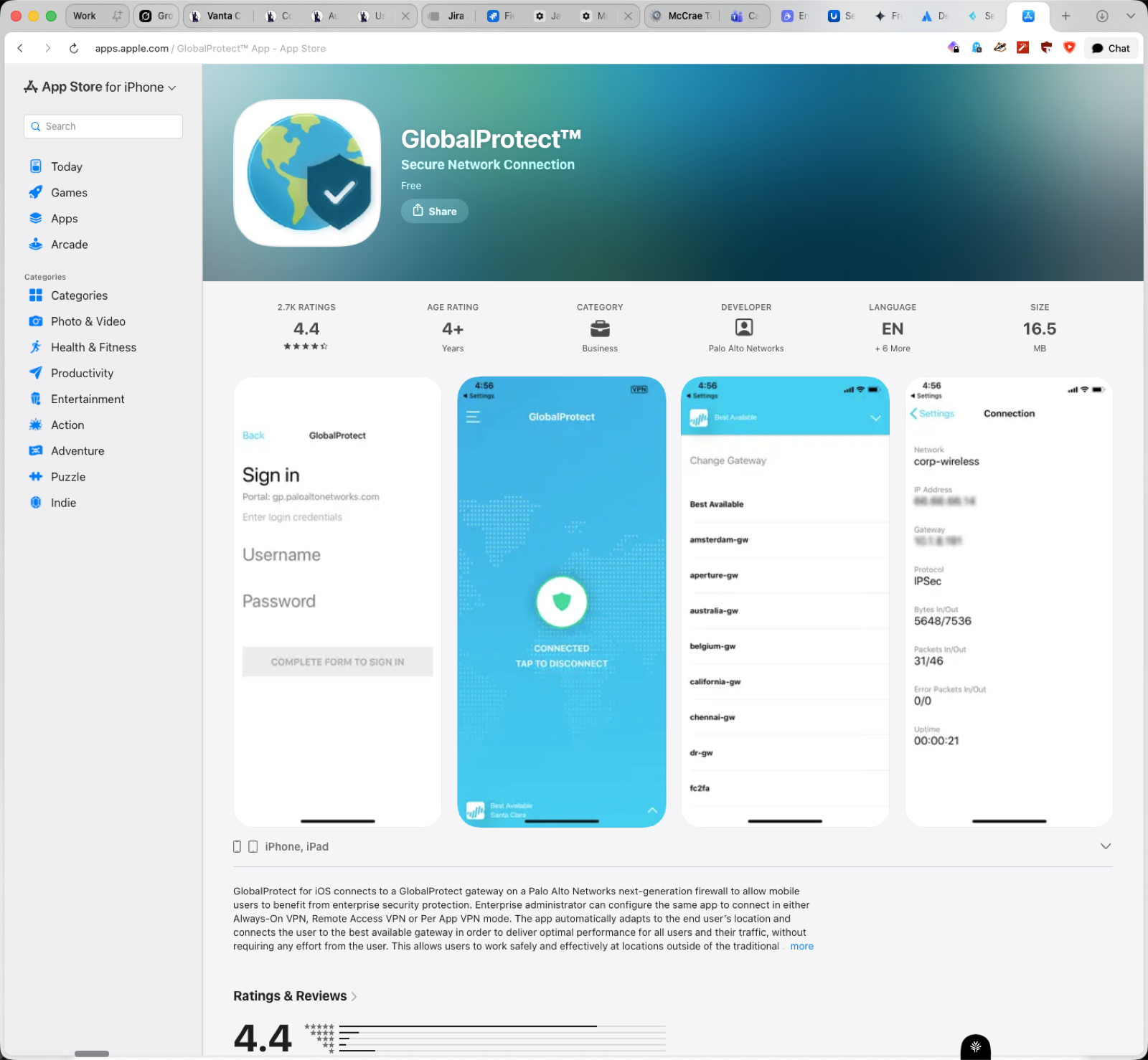
Look for the globe + shield icon and developer Palo Alto Networks. After install, GlobalProtect is already an app icon — you do not need “Add to Home Screen” for the VPN client itself.
Step 2 — Enter the portal and connect
- Open GlobalProtect
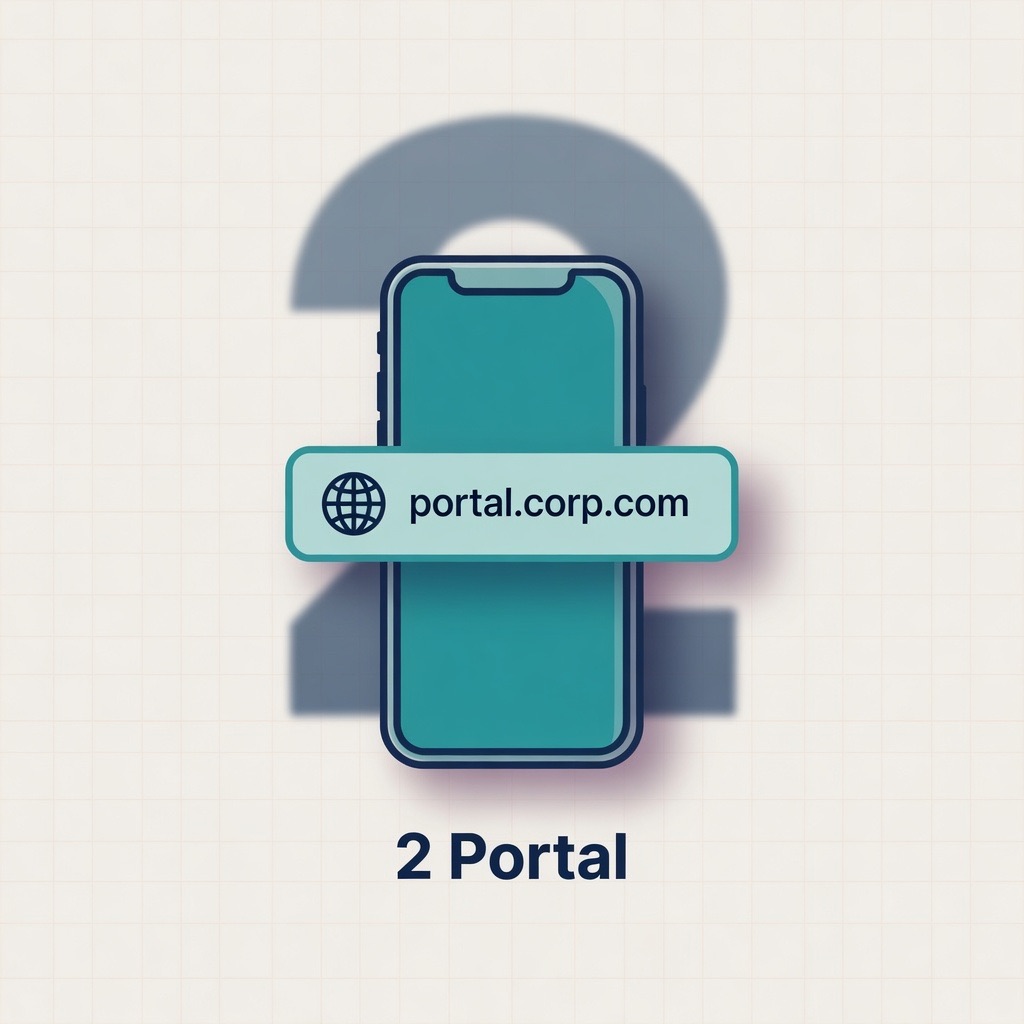
- When asked for a portal, enter:
bkkvpn.amalga.vip- No
https:// - No trailing
/
- No
- Tap Connect / Continue
- When iPhone asks to Add VPN Configurations, tap Allow and unlock with Face ID, Touch ID, or passcode
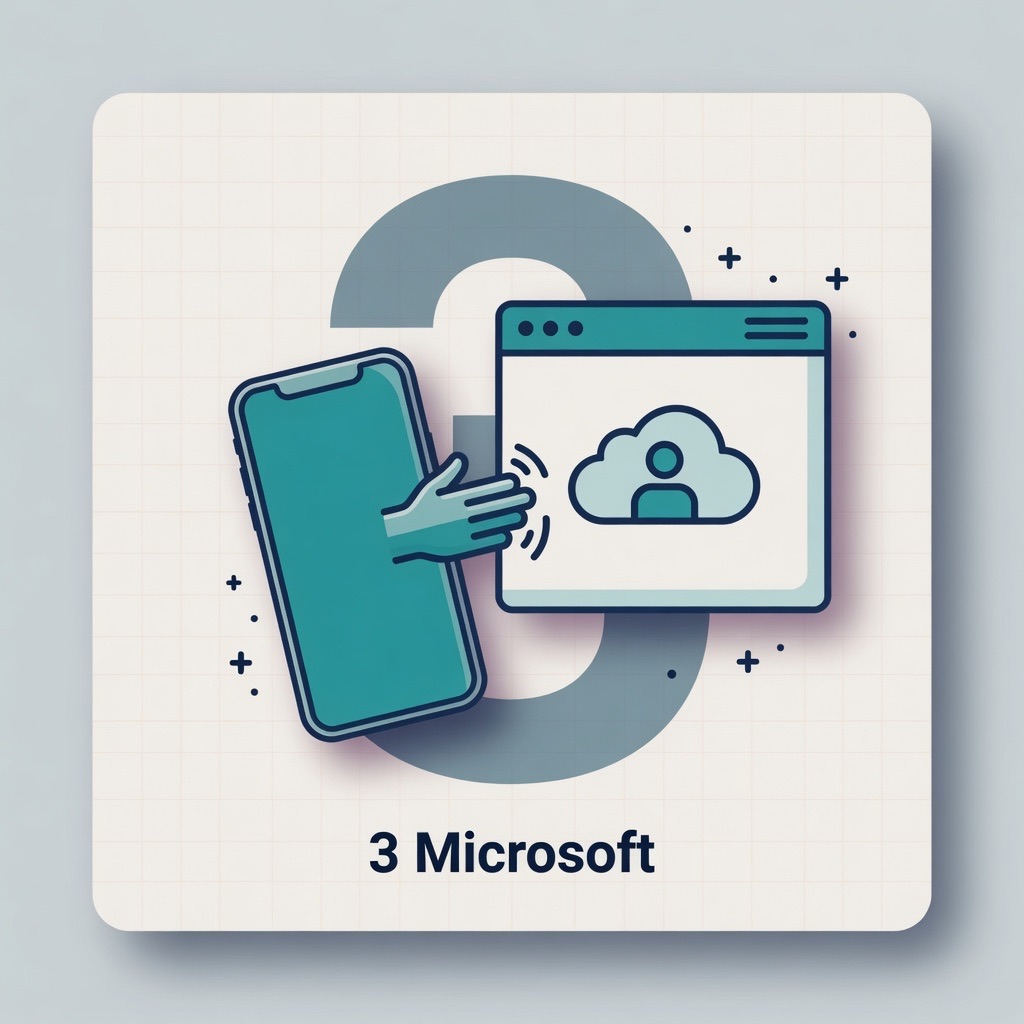
Step 3 — Sign in with Microsoft (Safari may open)
Microsoft login often leaves GlobalProtect and opens Safari or a browser sheet. That is expected.
- Enter your work/school email
- Enter your password
- Complete MFA if prompted
- Accept stay-signed-in / permissions as your org expects (usually Yes / Accept)
- Return to GlobalProtect (it may switch automatically; otherwise use the app switcher)
If Safari stays open and nothing happens: force-quit GlobalProtect → reopen → Connect → finish Microsoft login again.
Step 4 — Confirm Connected
- In GlobalProtect, status should show Connected
- You may also see the VPN icon in the iOS status bar
Success. You are on the VPN. Disconnect anytime in GlobalProtect → Disconnect. Reconnect later with Connect (Microsoft may prompt again if the session expired).
Portal shortcut on Home Screen
This is a convenience shortcut only. It does not replace GlobalProtect for the real VPN tunnel.
- Open Safari (not Chrome)
- Go to
https://bkkvpn.amalga.vip - Tap Share (or ⋯ → Share)
- Scroll and tap Add to Home Screen
- If missing: scroll to bottom → Edit Actions → enable Add to Home Screen
- Name it e.g. Amalga BKK VPN → Add
Troubleshooting
Recheck spelling: bkkvpn.amalga.vip. Try Wi‑Fi vs cellular.
Complete MFA; try another network; clear the Microsoft Safari session and retry.
Return to GlobalProtect; toggle Connect off/on.
Settings → General → VPN & Device Management — look for GlobalProtect; reinstall the app if missing.
Use Safari; Share sheet → scroll down; or Edit Actions to enable it.
Use your work/school account, not a personal account unless IT issued that.